Inspect both source and rendered HTML
Confirm meta keywords is absent across templates
Checking the home page alone is insufficient. Inspect source and DevTools on every representative template, confirm keywords is absent, and verify title, description, robots and canonical remain.
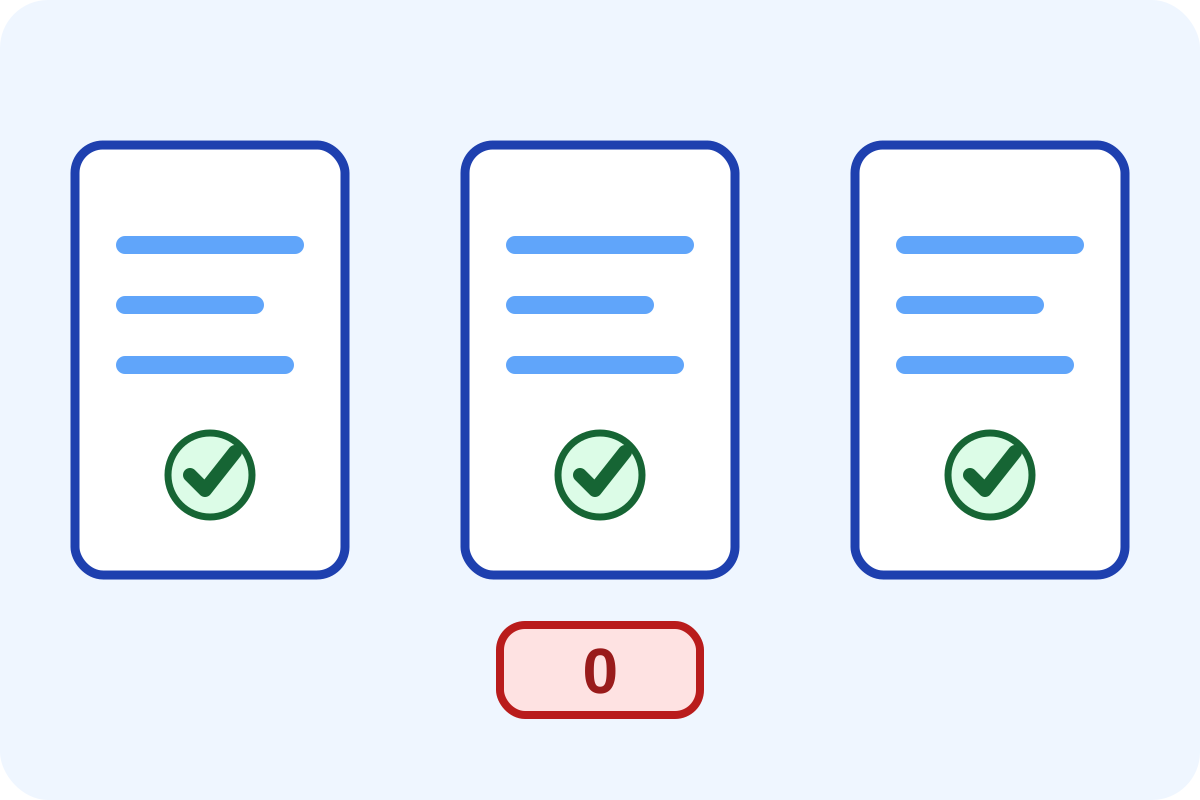
Simple check
- Open a page and choose View Page Source.
- Search case-insensitively for
name="keywords". - In DevTools → Elements search for
meta[name="keywords"]. - Repeat on home, category, product, service, article and other unique templates.
- Save URL, zero-result screenshot and the important metadata present.
How to classify the result
| Situation | Level | Action |
|---|---|---|
| The tag is absent across every representative template | No issue | Save sample and date. |
| The tag exists with empty content | Output remains | Disable the generator. |
| The tag remains on one page type | Template not repaired | Locate its separate generator. |
| Title, robots or canonical disappeared with keywords | Critical regression | Roll back and repair precisely. |
Technical check
document.querySelectorAll('meta[name="keywords"]').lengthThe expected result is 0. Independently inspect source HTML with curl or a crawler custom search for meta[name=keywords].
Google's official documentation lists meta keywords as unsupported: supported and unsupported meta tags.
False positives and scope
The word keywords in copy, JSON, comments, admin fields or JavaScript variables does not prove the meta tag exists. Inspect the actual meta element in the final head. Caching may temporarily serve old HTML.
Any automated price applies only to templates on the service page. Follow the step-by-step guide for your own change.