How to convert image formats safely
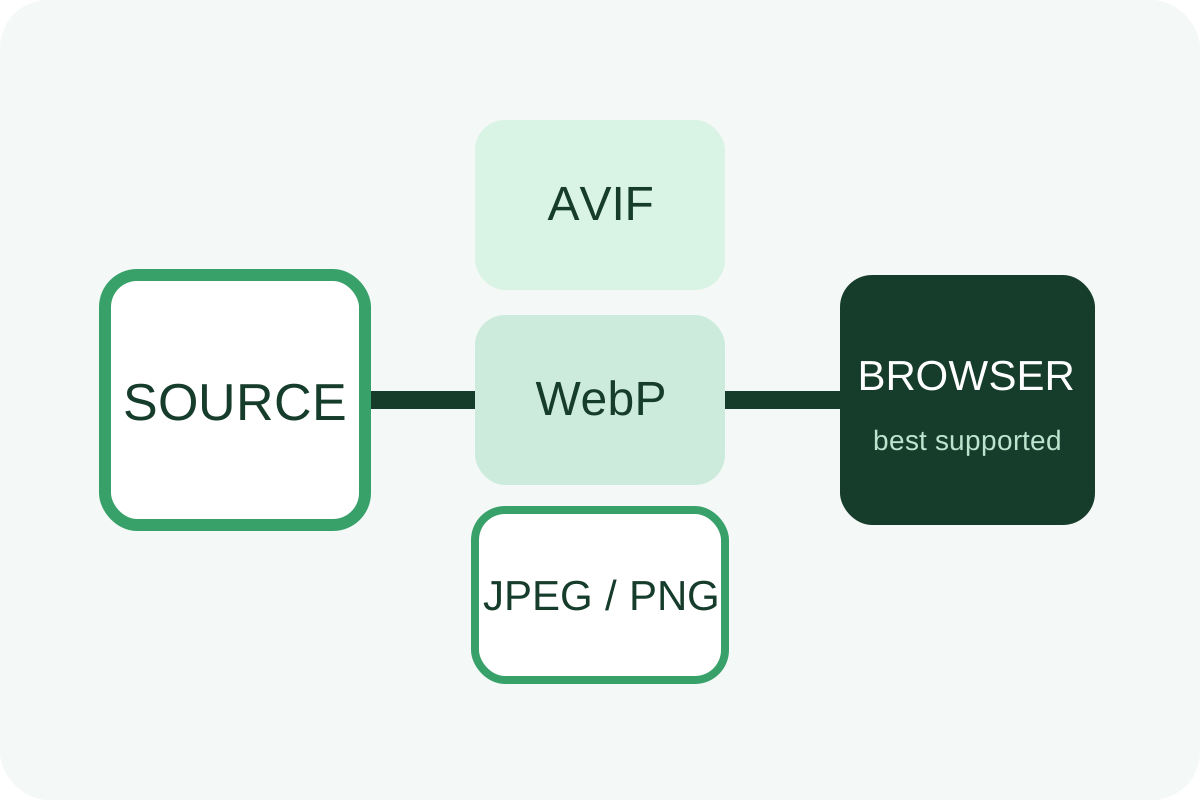
Do not blindly replace every asset with one format. Sample first, compare size and quality, add new variants with a fallback, and verify what is actually delivered.
Before you start
Back up originals and templates, choose representative pages and record image transfer size in Network with cache disabled. Mark the LCP image, transparency, animation and assets containing small text.
Message for a developer
“Select AVIF/WebP from measured comparisons, retain JPEG/PNG fallbacks and source masters, do not change URLs without a replacement map, and test desktop/mobile, Content-Type, currentSrc, quality and before/after weight.”
Implementation steps
- Classify files as photos, screenshots, logos/icons, transparent graphics or animations.
- Generate several quality settings for a small sample and compare at the real display size.
- Reject a variant if it is larger or damages detail. Vector artwork usually remains SVG; precise screenshots often suit lossless mode or PNG.
- Place preferred sources before the fallback:
<picture> <source srcset="photo.avif" type="image/avif"> <source srcset="photo.webp" type="image/webp"> <img src="photo.jpg" alt="Image description" width="1200" height="800"> </picture>- Preserve correct
srcsetandsizesfor each format. Do not send one oversized file to every screen. - Do not add
loading="lazy"to the primary above-the-fold image; below-the-fold assets may retain it. - Serve correct MIME types. If negotiating with
Accept, verify caching andVary. - Load pages without cache on desktop and mobile; test fallback, transparency, animation, 404s and weight.
Failures and rollback
| Risk | Check | Action |
|---|---|---|
| New extension, old content | Inspect Content-Type | Fix conversion and MIME |
| Lost transparency or blurred text | Compare images side by side | Use lossless mode or another format |
| No fallback | Disable AVIF/WebP sources | Restore a working img src |
| Weight increased | Compare transferred size without cache | Keep the original variant |
To roll back, restore the previous markup or CDN configuration and original URLs. Remove generated variants only after checking references.
Follow the audit guide or review the conversion service.